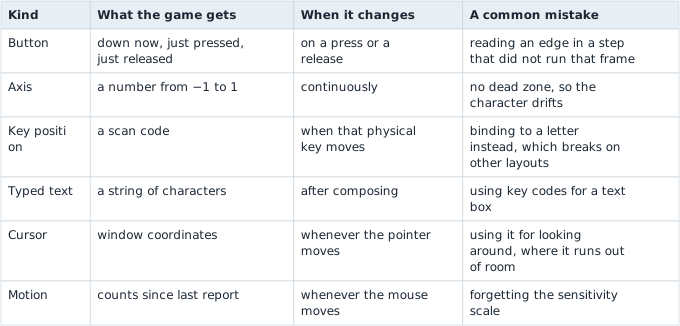
Lesson 6.9 compared the ways Windows delivers input to a program and the ways a tool can read or send it. This lesson follows that input inside the game once it has arrived. A game never asks the hardware whether the W key is down while it is deciding where to move. It keeps a small amount of input state, refreshes it once per frame, and turns it into actions.
Section: From a device to an action.
Input passes through three layers, and each one changes what the value means:

The device layer is what the operating system reports: a key went down, the mouse moved 12 counts, a stick reads 0.8. The state layer is the engine’s own copy of those facts, refreshed once per frame. The action layer converts them using the player’s bindings and settings. Movement and jump code then consume named actions rather than physical keys. The same jump can therefore come from a keyboard, a controller, or a remapped key without changing the jump calculation.
Section: Buttons: down, just pressed, and just released.
For every button the engine can answer three questions on every frame:
Is it down now? This stays true for as long as the button is held.
Was it just pressed? This is true on the single frame where it went from up to down.
Was it just released? This is true on the single frame where it went from down to up.
The last two are called input edges. The engine finds them by keeping last frame’s copy of the state and comparing: a button is just pressed when it is down now and was not down last frame. A lamp that the button toggles shows why the difference matters:

The engine collects the operating system’s events once, at the start of each frame. A press that arrives while a frame is being processed therefore waits for the next frame’s collection:
ExampleA key held for 150 milliseconds at 60 frames a second
A frame is 1000 divided by 60 equals 16.67 milliseconds, so frame 6 starts at 6 times 16.67 equals 100.0 milliseconds. The key goes down at 105 milliseconds, during frame 6, and comes up at 255 milliseconds, during frame 15:
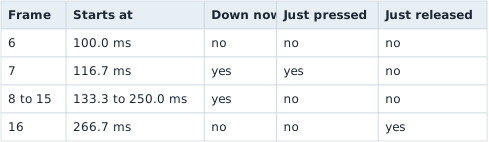
The game saw the press 116.7 minus 105 equals 11.7 milliseconds after it happened, and it saw the key down on frames 7 to 15, which is 9 frames and 9 times 16.67 equals 150 milliseconds, the time it was really held. The delay between the press and the game noticing is at most one frame.
Holding a key also makes the operating system send repeated key-down events, which is how a text box types a held letter many times. Games ignore the repeats: the key is simply still down.
Additional detail: Optional: how long must a tool hold a key for a game to see it?.
It depends on how the game reads the keyboard. A game that collects events, as above, sees even a very short press, because the down and the up wait in the queue until the next frame. A game that polls, asking “is the key down right now?” once per frame, sees a press only if one of its polls lands inside it. Polls are one frame apart, which is 1000 divided by 60 equals 16.67 milliseconds at 60 frames a second.
A press that lasts D ms and starts at a random moment contains a poll with probability D divided by 16.67. A 5 milliseconds press is seen 5 divided by 16.67 equals 0.30, which is 30 percent of the time. A 10 milliseconds press is seen 10 divided by 16.67 equals 0.60, or 60 percent of the time. A press of 16.67 milliseconds or more is always seen, if every frame lasts 16.67 milliseconds. Frames vary, so a tool that must be seen holds the key for the longest frame it expects, such as 2 frames, 2 times 16.67 equals 33.3 milliseconds.
Section: Why edges go missing in fixed steps.
Lesson 6.8 showed that a fixed step is a slice of game time, so a frame can run zero, one, or several steps. An edge lasts one frame, so a step that runs on a different frame never sees it:
ExampleA press that no step sees
The game draws at 144 frames a second, so a frame is 1000 divided by 144 equals 6.94 milliseconds, and runs movement and collision updates in 60 Hz steps, which are due every 16.67 milliseconds. The engine runs the steps that are owed at the start of each frame:
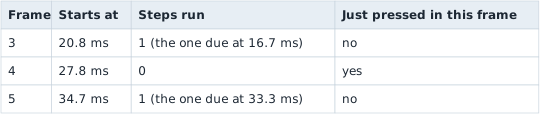
The press is visible on frame 4 only, and frame 4 runs no step. By frame 5 the edge is gone, and the step that runs there sees nothing. If instead two steps had run on frame 4, both would have seen the same press, and a jump would have happened twice.
The repair is to keep a press available until a simulation step can consume it. The input system turns a press into an event or an intent, such as “jump requested”, that stays in the queue until a step consumes it, exactly once. Many engines suggest doing this for input-sensitive updates that run in fixed steps.
In brief: A queued intent survives between render frames and simulation steps, then disappears when one step consumes it.
Section: Sticks and triggers: values between minus 1 and 1.
A thumbstick reports two axes, each a number from minus 1.0 (all the way one way) through 0 (centred) to +1.0. A trigger reports one axis from 0 to 1. A stick that nobody is touching rarely reads exactly 0, because springs and sensors are not perfect, so a resting stick might report 0.06. Without a fix, the character would drift.
The fix is a dead zone: a range around 0 that the game treats as 0. With a dead zone d of 0.15, any value whose size is below 0.15 becomes 0. Simply cutting the range would make the output jump from 0 to 0.15 when the stick leaves the zone, so engines usually rescale the rest of the range to start from 0:
Alternative: Picture the dead zone as slack around a centred knob; rescaling the remaining travel makes the first meaningful movement start smoothly.
With d equals 0.15 a reading of 0.5 becomes (0.5 minus 0.15) divided by (1 minus 0.15) equals 0.35 divided by 0.85 equals 0.41, a reading of 0.15 becomes 0, a reading of 1.0 stays 1.0, and the resting 0.06 becomes 0. As a function, in the two languages this book uses:
Rust
Code example. The surrounding prose explains this example; the full lesson contains the exact code.
Lua
Code example. The surrounding prose explains this example; the full lesson contains the exact code.
Both return 0.4118 for dead_zone(0.5, 0.15) and minus 0.4118 for dead_zone(-0.5, 0.15), because the sign is kept and only the size is rescaled.
A stick has two axes, so there is a second choice: apply the dead zone to each axis separately, or to the stick’s overall distance from the centre. They differ when the stick sits diagonally with a small push.
Additional detail: Optional: per-axis and radial dead zones for a small diagonal push.
Take a reading of 0.12 on both axes:
Per-axis dead zone
Each axis is checked alone. 0.12 is below 0.15 on both, so both become 0 and the output is (0, 0). A small diagonal push is ignored completely, and the stick feels dead in the diagonals while a straight push of 0.2 still works.
Radial dead zone
The dead zone applies to the distance from the centre: square root of (0.12 to the power of 2 + 0.12 to the power of 2) equals 0.12 times 1.414 equals 0.17. That is above 0.15, so it counts. Rescaled, (0.17 minus 0.15) divided by 0.85 equals 0.023, kept in the same direction, which is 0.023 times 0.707 equals 0.016 on each axis. The output is (0.016, 0.016), a small push that still points the right way.
Keyboard movement has a related trap. Pressing W and D together is the vector (1, 1), whose length is square root of (1 to the power of 2 + 1 to the power of 2) equals 1.414. Used as it is, walking diagonally would be 41 percent faster than walking straight. Engines normalise the result by dividing by its length, which gives (0.707, 0.707) and a length of 1 again. A game that forgets this lets a player move faster by strafing, a flaw that older games are well known for.
Code example. The surrounding prose explains this example; the full lesson contains the exact code.
walk(1.0, 1.0) returns (0.707, 0.707), whose length is 1. walk(0.6, 0.0) is left alone, because a length below 1 is a gentle push, and shrinking it would make a half-pressed stick as fast as a full one.
Section: Keys: where a key is and what it types.
A keyboard key has two identities. Its position is a fixed place on the board, reported as a scan code or key code. The character it types depends on the layout the player has selected. On a QWERTY keyboard the top letter row reads Q W E R T Y. On an AZERTY keyboard, the layout common in France, the same row reads A Z E R T Y, so the physical key where QWERTY has W types Z:
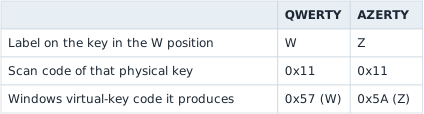
Games bind movement to key positions, so the four keys under the left hand are forward, left, back, and right on any layout, with different letters printed on them. Text boxes want the opposite: they read characters, so a French player types French. A game that checks the virtual-key code for W breaks on the AZERTY keyboard, because the key that sends it is somewhere else.
Languages with thousands of characters are typed through an input method editor, or IME. The player composes a word in a pending buffer, sees suggestions, and confirms one. The game receives the pending text, so it can show it underlined, and then the final text once the player confirms. While composing, the keys go to the IME rather than to the game as ordinary key events, which is why a text box needs to switch IME mode on, and gameplay must not.
Section: The mouse: where it is, how far it moved, and the wheel.
The mouse reports three different things, and a game uses them for different jobs:
Cursor position, in window coordinates: the origin is the top left corner of the window and y grows downward, counted in pixels. It is used for clicking and hovering over menus. Its logical pixels become physical pixels through the display’s scale factor, as in Lesson 6.9’s window properties.
Motion, the distance moved since the last report, such as +12 counts across and minus 3 up. It is used for looking around, and the turn is the motion times a sensitivity: 12 counts at 0.1 degrees a count turn the view by 12 times 0.1 equals 1.2 degrees.
The wheel. On Windows one notch of a traditional wheel is 120 units, so 3 notches report 360 units, which a game reads as 3 lines. A touchpad reports small, smooth amounts in pixels instead, so engines tell the two units apart and scale each one differently.
A game that looks around with the mouse takes control of the cursor. In a locked mode the cursor is hidden and cannot reach the window’s edge. Windows has no built-in lock, so many engines move the cursor back to the centre after every read, and others read the mouse’s raw movement directly:
ExampleA look-around loop in a 1280 times 720 window
The centre is at (1280 divided by 2, 720 divided by 2) equals (640, 360). The mouse moves, and the engine reads the cursor at (652, 357). The motion is (652 minus 640, 357 minus 360) equals (+12, minus 3), the engine turns the view by it, and then it places the cursor back at (640, 360) for the next frame.
A confined mode keeps the cursor visible but inside the window, which suits strategy games that scroll when the pointer reaches an edge.
Section: Touch and controllers.
A touch screen reports every finger separately. A finger gets an identifier when it lands and keeps it until it lifts, and the engine reports its position each frame. Gestures are not part of the hardware: the game builds them by comparing fingers. A pinch compares the distance between two of them. If the fingers start 200 pixels apart and end 300 pixels apart, the zoom factor is 300 divided by 200 equals 1.5.
A controller has an identifier of its own, which is how a local multiplayer game tells player 2’s pad from player 1’s. Its buttons are named by position, such as south, east, west, and north, because the same four buttons are labelled A, B, X, and Y on one maker’s pad and cross, circle, square, and triangle on another’s. Vibration requests add up: two rumbles of strength 0.3 and 0.5 running at once drive the motor at 0.3 + 0.5 equals 0.8.
Section: Losing focus and stuck keys.
When the player switches windows while holding a key, the game never receives the key-up. If it kept the old state, the key would look held when the player came back. Engines therefore watch for a focus-lost event and clear their input state when it arrives. A tool that polls the hardware directly, as in Lesson 6.9, still sees the keys while the game is out of focus, which is why such a tool must check for focus itself.
Narration: Switching windows mid-press can hide the release event. Clearing saved input on focus loss prevents the returning game from treating the key as permanently held.
Section: Bindings are data.
The link between a key and an action is a table the game keeps in a settings file:
Code example. The surrounding prose explains this example; the full lesson contains the exact code.
A rebinding screen is a small loop on top of the same table: wait for the next press, store its key code against the chosen action, and write the file. For a tool this table matters in two ways. Editing the file changes what a key does without touching the game’s memory, as in Chapter 9, and an action can be requested by making the game receive the event that its binding turns into an action, rather than by faking the keyboard.
Section: Where input sits in memory.
The state layer is usually a few small structures: an array with one entry per key, a second array holding last frame’s copy for the edge test, a pair of numbers for mouse motion, and the axis values as floats. A Windows game that indexes its key array by virtual-key code finds W at index hexadecimal 5 7, which is 87, the A S C I I code of the letter W.
You can find such an array with the same filtering idea as the gold scan in Lesson 1.9, except that the value is not shown on screen:
Start a scan for a one-byte value with the type unknown, while the key is up.
Hold the key and keep holding it, then scan for values that changed.
Release the key and scan for values that changed again.
Repeat the hold and the release until a handful of addresses are left.
Hold the key and read the survivors: the right one holds a non-zero value while the key is down and 0 when it is up. If the game keeps one entry per key, the neighbouring bytes belong to the neighbouring key codes.
Input at a glance