Section: A menu is a control surface, not the hack itself.
A useful game-tool menu answers four questions clearly:
What features exist?
What state is each feature in?
Which changes have actually reached the worker?
How does everything return to normal during shutdown?
The menu should not own a process handle, execute pointer chains while painting a checkbox, or patch memory sixty times per second. Its job is to edit ordinary settings and send deliberate commands to a worker. That separation makes the interface responsive and the low-level code reviewable. 🎛️


This tutorial builds a separate desktop window. That is the best first menu: it is easy to debug, does not run under loader lock, and can stay open beside Wesnoth, AssaultCube, or another local course target. Integrating the same widgets into an injected renderer is a later graphics-backend problem.
Section: Create the project.
The buildable course version lives in menu_lab.rs. It uses eframe 0.36, whose egui UI is well suited to tools that redraw interactive controls every frame:
Code example. The surrounding prose explains this example; the full lesson contains the exact code.
From the windows-labs directory, run:
Terminal window
Code example. The surrounding prose explains this example; the full lesson contains the exact code.
The first build downloads and compiles the windowing and OpenGL support, so it will take longer than later runs.
Section: Put the settings in one type.
Avoid one unrelated global boolean per feature. A settings value is easier to copy, compare, validate, save, and send:
Code example. The surrounding prose explains this example; the full lesson contains the exact code.
The enum is important. Three booleans named overlay_off, team_overlay, and all_overlay could all become true at once. One OverlayMode value can hold exactly one variant. ✅
observation_only defaults to true. A safe default is a design feature, not a warning paragraph the user has to remember.
Section: Understand immediate-mode UI.
In a retained UI toolkit, you create a checkbox object and the framework keeps it. In egui’s immediate mode, your ui function describes the interface again each frame:
Alternative: Immediate mode redraws a description from saved settings; retained mode keeps the interface objects themselves. Both still need somewhere to keep the chosen values.
Code example. The surrounding prose explains this example; the full lesson contains the exact code.
The checkbox borrows show_names for this call. It reads the current value, draws the correct box, and changes the value if the user clicks. The MenuApp stores the setting between frames; the widget does not.
This is why low-level work must not happen unconditionally in ui:
This intentionally bad menu variant draws a slider and immediately writes its current value to the owned lab process. It assumes a Process in self.process and a verified FOV_ADDRESS; the real course menu below only sends commands. Immediate-mode UI redraws repeatedly, so repainting the bad variant repeats that side effect.
Before: write memory whenever the menu redraws
Code example. The surrounding prose explains this example; the full lesson contains the exact code.
Make the user event explicit: clicking Apply sends one command to the worker. The worker still validates the request and reports whether it was applied; queuing a command is not proof that a write succeeded.
Improved code
Code example. The surrounding prose explains this example; the full lesson contains the exact code.
Show the diff
Code example. The surrounding prose explains this example; the full lesson contains the exact code.
Takeaway: a redraw displays state; an explicit command requests a state change.
The first version repeats a side effect merely because the menu repainted. The second version names the user action that triggers one update.
Section: Design the event before drawing the widget.
An event-driven tool waits for something meaningful to happen, then runs the small handler that owns that event. Describe each interaction before choosing colors, icons, or panel layouts:
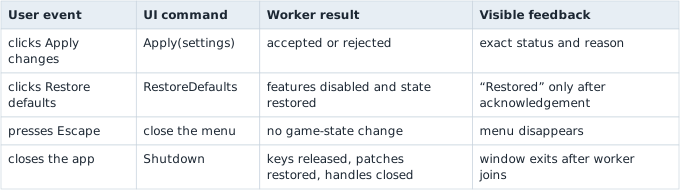
This table prevents a common UI logic bug: the button changes its label or color, but no one can say whether the worker completed the requested action. The worker owns the game-hacking side effect; the menu owns the request and the truthful report of its result.
Section: Give the worker commands, not widget references.
The menu and worker may run on different threads. Send owned data through a channel:
Code example. The surrounding prose explains this example; the full lesson contains the exact code.
Apply(Settings) owns a snapshot. The UI can keep changing its copy without racing with the worker. The worker is the only place that should own Windows handles and call the verified adapters from earlier lessons.
In brief: The menu sends owned requests; the worker owns process operations and reports whether they actually succeeded.
The course lab intentionally prints settings instead of modifying a game:
Code example. The surrounding prose explains this example; the full lesson contains the exact code.
Replace only that adapter with a version-checked game bridge. The UI architecture stays the same whether the worker reads a snapshot, controls an overlay, or applies the guarded Wesnoth gold change from Chapter 3.
Section: Do not resend unchanged settings.
Keep both the currently edited value and the last value sent:

The method below implements the decision in that diagram. It sends a command only when settings differ from the last sent values; a successful send updates the remembered copy and the message the user sees. The worker still has to report whether it actually applied the command.
Code example. The surrounding prose explains this example; the full lesson contains the exact code.
This is state synchronization in miniature. settings is the proposed state. last_applied is the last state the UI knows it submitted. In a more advanced tool, the worker can answer with an acknowledgement so the menu shows “applied,” “rejected,” or “target closed” instead of guessing.
Section: Add a menu hotkey without accidental repeats.
Use the rising-edge helper from Lesson 6.9 for VK_INSERT. Polling GetAsyncKeyState(VK_INSERT) and toggling on every frame while it is negative will make the menu flicker open and closed. Toggle only when the key changes from up to down:
Narration: A held hotkey lasts many frames. Treating every down sample as a new press can open and close the menu before the player releases it.
Code example. The surrounding prose explains this example; the full lesson contains the exact code.
When the menu is open, decide who owns input:
a separate menu window receives input only while the user focuses it;
an injected overlay should ask egui whether it wants pointer or keyboard input before forwarding those events to the game;
closing the menu must release any synthetic key or mouse button the worker still owns;
losing target focus should pause active input features.
Do not “fix” focus by continuously forcing the game window to the foreground. Let the user choose which application receives input.
Section: Make the menu readable.
Good menus are boring in the best way:
use verbs such as Apply changes and Restore defaults;
group read-only, overlay, and input features separately;
show units on numbers ( degrees, pixels, milliseconds );
disable controls that cannot currently work and explain why;
display the target build and connection state near the top;
keep dangerous actions behind an explicit confirmation;
never use color as the only sign of success or failure.
keep Stop, Restore defaults, and Escape easy to reach;
preserve keyboard navigation and readable contrast at every theme setting;
remember cosmetic preferences without silently remembering an unsafe active feature.
The full example sets a minimum window size. Otherwise, a narrow window can wrap a label such as Restore defaults into a column of one-letter lines while the button is still technically present. Desktop tool menus need enough width for their actual text and controls.
Section: Shut down in the reverse order of setup.
MenuApp::on_exit sends Command::Shutdown. The worker should then:
stop accepting new feature commands;
release held keys and mouse buttons;
restore bytes or graphics state it changed;
unhook only hooks it installed;
close its owned handles;
report completion and exit.

The main thread joins the worker before returning. A window disappearing is not proof that cleanup finished; joining turns cleanup into something the program actually waits for.
Section: From tool window to transparent overlay.
Once this separate menu behaves correctly, reuse its Settings and Command types in an overlay. The overlay-specific layer must additionally:
track the game client rectangle with GetClientRect and ClientToScreen;
respond to DPI and resize changes;
switch between click-through mode when closed and interactive mode when open;
save and restore the game’s graphics state if drawing inside its renderer;
keep the target’s update thread free of file I/O, sleeping, and channel waits.
Build the control model first. Each feature still needs an owner, a defined set of commands, and a way to restore any bytes it changes when the menu moves into the game. The tool-architecture lesson combines those responsibilities with snapshots, feature lifecycles, version checks, and failure handling. Chapter 7 then follows the camera and drawing state that an in-game display would need.
Section: Reference.
eframe::run_native
eframe::App
egui::Slider