Section: World-to-screen uses the view-projection transform.
An e s p-style observer needs to answer:
Where would this 3D point appear on the 2D screen?
The reliable answer uses the game’s view-projection matrix. Hand-tuned angle formulas can teach geometry, but a matrix handles camera rotation, field of view, aspect ratio, and perspective together.
The matrix is not magic screen-coordinate data. It is a compact composition of specific coordinate changes. If its convention, snapshot time, or viewport does not match the rendered frame, the resulting pixels can be precise arithmetic and still describe the wrong image.
Section: Name every coordinate space.
“World to screen” is not one mysterious jump. It is a pipeline of smaller changes, and every stage answers a different question:
Code example. The surrounding prose explains this example; the full lesson contains the exact code.

This tour chooses a world point (2, 1, -4) and a camera at (1, 0, 0) looking along negative Z. Its right and up directions match the world axes. Subtracting the camera position gives (1, 1, -4). Choose an 800-by-800 viewport so the aspect ratio is one. A 90-degree vertical field of view gives 1 / tan(45 degrees) equals 1. Choose near and far distances of one and nine; the depth formula below then gives (9 + 1) / (1 - 9) equals -1.25 and 2 times 9 times 1 / (1 - 9) equals -2.25. These settings make every conversion visible.

Naming the stages makes bugs easier to locate. A marker that rotates the wrong way usually points to the view transform. A marker that stretches after a resolution change points to the viewport or aspect ratio. A point behind the camera that appears mirrored points to the perspective divide or clipping.
The w value is not another world direction; Why perspective uses w shows how it carries depth. Reject unusable w values before dividing, then reject points outside the target A P I, application programming interface,’s depth interval. OpenGL commonly uses -1..=1 after projection; Direct3D commonly uses 0..=1. The matrix and convention must come from the same game pipeline.
Section: The view matrix is the inverse camera pose.
A camera pose says where the camera exists in world space. Rendering needs the opposite question: where does the world appear relative to the camera? Therefore the view matrix is the inverse of the camera’s world transform.
Alternative: The camera pose moves the camera through the world; the view matrix asks how the world looks from that moved camera, so it reverses the pose.
For an orthonormal camera basis, inverse rotation is its transpose. The translation is not simply -camera_position; it is the negative position expressed along the camera basis. In dot-product form, that is the view transform from Lesson 7.1: subtract the camera position, then take the dot product of the result with each camera axis.
If positions track correctly until the camera rotates, the translation may be right while the basis order, handedness, or inverse operation is wrong.
Section: Why perspective uses w.
Far-away objects look smaller. After the matrix transformation, perspective division divides the transformed x, y, and z by w:
In brief: Perspective division makes the same world-sized object occupy fewer screen pixels as its depth increases.
Code example. The surrounding prose explains this example; the full lesson contains the exact code.
This creates perspective because the projection matrix is built so that the resulting w carries the point’s distance from the camera: dividing by w divides by depth. Ignoring signs and A P I details, for a symmetric perspective camera:
Code example. The surrounding prose explains this example; the full lesson contains the exact code.
Double the depth while keeping the sideways offset unchanged and the point moves half as far from the screen center, so an object twice as far away covers half as much screen. A perspective matrix stores this division in w so the G P U, graphics processing unit, can delay it until after clipping.
If w is zero, the division is undefined. In the convention used in this lesson, where a point in front of the camera has a positive w, a negative w puts the point behind the camera — and the division still yields a perfectly ordinary-looking coordinate, with both signs flipped. This is the classic overlay bug: an enemy standing directly behind the player gets drawn on screen in front, mirrored to the opposite side, with the box sliding the wrong way as they move. Nothing crashes and no number looks obviously wrong, so world-to-screen code must skip any point whose w is at or below a small positive threshold before producing pixels, as the clip_w test in Transform a point does.
Section: What field of view and aspect ratio change.
The vertical field of view fov_y determines how much of the world fits from top to bottom. The aspect ratio is width / height. A common perspective scale is:
Code example. The surrounding prose explains this example; the full lesson contains the exact code.
Here is where that comes from. Picture the frustum at some depth d straight ahead of the camera. Half the vertical field of view is the angle from the center line up to the top edge of what the camera sees, so — for a right triangle with that angle and an adjacent side of length d — the frustum’s half-height at that depth is d times tan(fov_y / 2). A point sitting exactly on that top edge has view_y equals d times tan(fov_y / 2), and it needs to land at the very top of the screen, NDC y equals 1. Since screen_y is proportional to view_y / view_depth, the scale factor that sends tan(fov_y / 2) to 1 is its reciprocal: y_scale equals 1 / tan(fov_y / 2).
Concrete numbers make the zoom effect visible. At fov_y equals 90 degrees, half the angle is 45 degrees and tan(45 degrees) equals 1, so y_scale equals 1. Narrow the field of view to 60 degrees: half the angle is 30 degrees, tan(30 degrees) approximately 0.577, and y_scale approximately 1.732 — a bigger multiplier, so the same view_y / view_depth now produces a larger NDC value and the scene looks zoomed in. A smaller field of view makes tan(fov_y / 2) smaller, so the scale grows and the view zooms in.
One practical trap sits in that formula. Trigonometric functions take radians, not degrees. Passing 90.0 where 1.5708 was expected produces a scale that is wrong by a wide margin, and the symptom is a scene that looks nothing like a camera view rather than an obviously wrong number. Convert at the boundary and put the unit in the variable name.
x_scale reuses that number instead of deriving a separate one. At the same depth d, the frustum’s half-width must be aspect times its half-height, because aspect is defined as width / height. Dividing y_scale by aspect shrinks the horizontal scale by exactly that factor, so the wider half-width still maps to NDC x equals 1. Skip that division and a widescreen monitor squashes the image horizontally instead of showing more of the scene.
Section: One concrete perspective matrix.
Conventions must be attached to formulas. Under these assumptions:
column vectors;
right-handed camera space looking down -Z;
vertical field of view fov_y;
aspect ratio width / height;
OpenGL NDC depth -1..1;
positive near and far distances with 0 less than near less than far;
define f equals 1 / tan(fov_y / 2), the y_scale from the previous section, so the matrix’s first entry, f/aspect, is x_scale. One projection matrix is:
Code example. The surrounding prose explains this example; the full lesson contains the exact code.
Multiplying a view-space point gives clip_w equals -view_z, so points in front have positive w. This exact matrix is not portable to a left-handed or Direct3D depth convention. Its purpose is to show where assumptions live.
Section: Clipping happens before perspective division.
In homogeneous clip space, the standard OpenGL visible volume satisfies:
Code example. The surrounding prose explains this example; the full lesson contains the exact code.
For a Direct3D-style depth range, z is commonly constrained by 0 less than or equal to z less than or equal to w while x and y use the same bounds. A triangle crossing a plane is clipped into a smaller polygon; it is not discarded merely because one vertex is outside.
Point labels are simpler: if their single anchor lies outside, reject or clamp the label according to the chosen off-screen-label behavior. Do not use a point-label boundary check to reason about whether an entire triangle should render.
The playground below uses one declared convention so every sign and axis has a meaning. It deliberately treats forward as positive +Z, unlike the -Z projection example above; this makes the depth control read naturally and shows why formulas cannot be separated from their coordinate convention. Move the point sideways, vertically, and through depth; then change the vertical field of view. Watch how camera-space coordinates become NDC and finally pixels.
Section: Represent the matrix.
The projection routine needs three separate pieces of data: sixteen matrix values, a screen position for successful projections, and the renderer’s accepted depth range. Naming them here keeps a Direct3D depth convention from accidentally being applied to an OpenGL matrix:
Code example. The surrounding prose explains this example; the full lesson contains the exact code.
First determine whether the target stores matrices row-major or column-major. Test with a known point while the camera is stationary.
There are three independent questions:
are consecutive values a row or a column ( storage layout )?
does the math use row or column vectors ( multiplication convention )?
is the candidate already view times projection, projection times view, or one component only ( composition )?
A wrong answer to the first and a wrong answer to the second can cancel, and neither the identity matrix nor a still camera reveals it. Validate identity, translation, and a known 90-degree rotation together rather than repeatedly transposing until one screenshot looks plausible.
Additional detail: Optional reference: how two layout mistakes cancel.
Those three interact in a way that actively hides mistakes. Transposing a matrix swaps its rows and columns, and switching between row-vector and column-vector multiplication has precisely the same effect on the arithmetic. Two wrong answers therefore cancel, and the transform appears to work — for the wrong reasons:
Code example. The surrounding prose explains this example; the full lesson contains the exact code.
What makes this hard to catch is that the easiest test cannot detect it. The identity matrix is symmetric, so transposing it changes nothing and it passes under every combination of the three choices. A camera sitting still is nearly as forgiving. A translation matrix and a 90-degree rotation matrix are not symmetric, so under a cancelled pair of mistakes they are the first things to break.
Section: Transform a point.
One row-major form looks like:
Code example. The code’s comments explain: 🗺️ Convert normalized coordinates from -1..1 into screen pixels. `midpoint` expresses the halfway step without overflowing the sum.
The positive-w front-facing test belongs to the projection convention described above. Some pipelines use a different sign. Determine the front-facing half-space with a point known to be directly ahead. The small epsilon avoids enormous coordinates near the camera plane, but it is a policy threshold in clip-space units, not a universal constant.
The midpoint calls implement:
Code example. The surrounding prose explains this example; the full lesson contains the exact code.
The y flip assumes an upper-left pixel origin. OpenGL’s traditional viewport origin is lower-left, and UI/window systems commonly use upper-left. Confirm which layer the overlay draws into.
Section: Several cameras, one world.
A camera is an object with a position and a turn like any other, plus a projection and a few settings: which surface it draws into (the window, or an off-screen image), which rectangle of that surface (its viewport), and when it draws compared with the other cameras (its order). A split screen, a minimap, a rear-view mirror, and a security monitor inside the game each use another camera. A camera that draws into an off-screen image makes a texture that a material can then show on a mirror or a monitor. Every formula in this lesson works for each camera separately, using that camera’s viewport rather than the whole window.
ExampleA 1920 times 1080 window with two players and a minimap
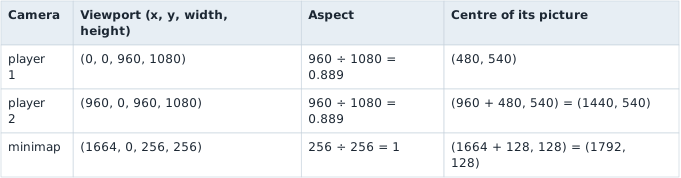
The window’s own aspect is 1920 divided by 1080 equals 1.778. Give player 1’s camera that value instead of 0.889, and its horizontal scale, y_scale divided by aspect, comes out 0.889 divided by 1.778 equals 0.5 times what it should be, so the picture is squeezed to half its width. And a world point that projects to the middle of player 2’s picture belongs at pixel x equals 1440, not at 480.
The minimap’s viewport lies inside player 2’s, so the minimap must draw later. The camera with the lower order draws first, and a later camera can paint over what is already there instead of clearing it, which is how a minimap sits on top of the main picture. Which objects each camera draws is decided by the layer filters, culling, and visibility tests in Lesson 7.2.
In memory, a game with several cameras can hold several view-projection matrices. The one that belongs to the picture you draw over is the one that changes when you turn that player’s view, and its viewport is the rectangle to use in the pixel conversion above. world_to_screen counts pixels from the top left of the viewport whose width and height it receives, so add the viewport’s own origin to get window pixels: for player 2, the centre of the picture is (480, 540) inside the viewport and (960 + 480, 540) in the window.
Section: Depth after projection is not world distance.
ndc_z is produced by the projection and perspective divide. For a perspective camera it is nonlinear with view-space distance. Two points separated by one metre near the camera can have a much larger depth-buffer difference than two points one metre apart near the far plane.
Use Euclidean or view-space distance for range labels. Use projected depth to test the clip range or compare against a compatible depth buffer. Do not display ndc_z as metres.
In brief: Projected depth belongs to the camera’s depth convention; use world or view-space distance when displaying a range in metres.
If all markers move incorrectly, the likely problem is matrix layout or coordinate conventions—not a random “scale constant.”
Section: Find the matrix by behavior.
A view matrix changes when the camera moves or rotates. A projection matrix changes with field of view, aspect ratio, or resolution.
Search for a group of 16 floats and compare:
camera still versus rotating;
same camera at two resolutions;
one known world point projected through a candidate.
A pattern scanner may later locate the code or global pointer that produces the matrix.
Candidate-matrix invariants help reject false positives:
all 16 values are finite;
the camera-dependent portion changes smoothly with camera movement;
the projection scale changes predictably with field of view/aspect ratio;
a point directly ahead projects near the center;
farther points with the same direction approach the same screen coordinate;
multiplying by an identity test matrix leaves a test point unchanged.
Section: Read a coherent snapshot.
Camera, matrix, players, and viewport size should come from roughly the same frame. If the game updates them while an external tool is reading, markers may jitter.
Narration: Correct multiplication still produces jitter when the camera and player positions describe different moments. Check capture consistency before blaming the projection formula.
Use one bounded read pass:
Code example. The surrounding prose explains this example; the full lesson contains the exact code.
Validate every float and cap player count.
“Roughly the same frame” is measurable. Attach a sequence number before and after the read when the target exposes one, and retry if it changed. Without a sequence, read the matrix twice around the entity batch and reject the sample if it changed materially. This does not create atomicity, but it detects many torn snapshots.
Section: Draw only visible, valid points.
A correct projection may still return None for a point behind the camera or outside the view. Build labels only from valid player snapshots whose positions survive world_to_screen; the result is a list of text and screen points that the overlay can draw without touching game memory again:
Code example. The surrounding prose explains this example; the full lesson contains the exact code.
Use sanitized copied text for names. Never follow a remote string pointer indefinitely; set a byte limit and require valid encoding.
Section: Use a separate window.
An external transparent overlay is usually easier to reason about than calling an internal text function:
Code example. The surrounding prose explains this example; the full lesson contains the exact code.
The overlay should ignore mouse input, match the target’s client area, and stop when the target closes.
Match the client area, not the outer window rectangle. Borders and title bars shift the origin. DPI scaling can make logical UI units differ from physical pixels, and borderless/fullscreen modes may change which coordinate system the compositor uses. Recalculate when the window moves, resizes, changes monitor, or changes DPI.
Section: Reproduce the original in-game AssaultCube e s p.
The world-to-screen function and separate overlay already let you test the geometry. This exact-build in-game implementation applies the detours and D L L, dynamic link library, lifecycle from Lesson 8.3 to the game’s own print path.
The original 1.2.0.2 lab uses the same globals and player layout as the aimbot, plus these confirmed facts:
Code example. The surrounding prose explains this example; the full lesson contains the exact code.
For this specific virtual viewport, the experimentally calibrated projection is:
Code example. The surrounding prose explains this example; the full lesson contains the exact code.
Iterate players 1..count, calculate each desired angle, and publish the projected position and name pointer into fixed atomic slots. The render hook reads those slots and calls this value with the confirmed x, y, and text arguments. The player object owns the fixed 16-byte name field for the frame; the code never scans past that verified field while calculating its address.
The overwritten bytes at this value are themselves a five-byte near call to this value. The installer calculates those expected bytes, refuses an unknown build, and replaces the call with a near jump to this compiled cave:
Code example. The code’s comments explain: Replay the original print call with an empty string, then add labels.
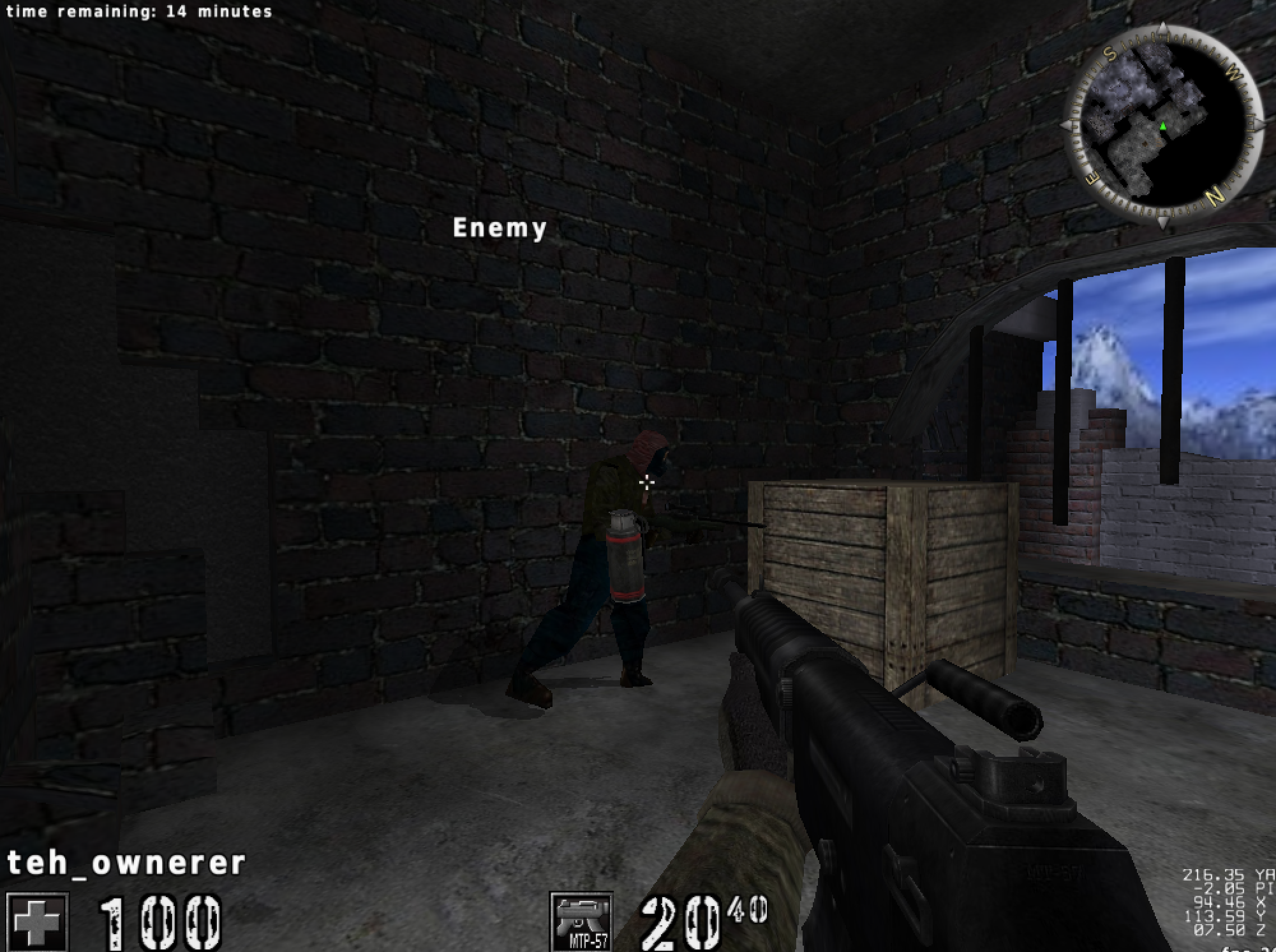
Start with the literal text Enemy at (hexadecimal 1 0 0, hexadecimal 1 0 0) to prove the print call. Then use one bot, calibrate left/center/right, add pitch, add its name, and finally loop through all players. The finished result is the named e s p shown below.
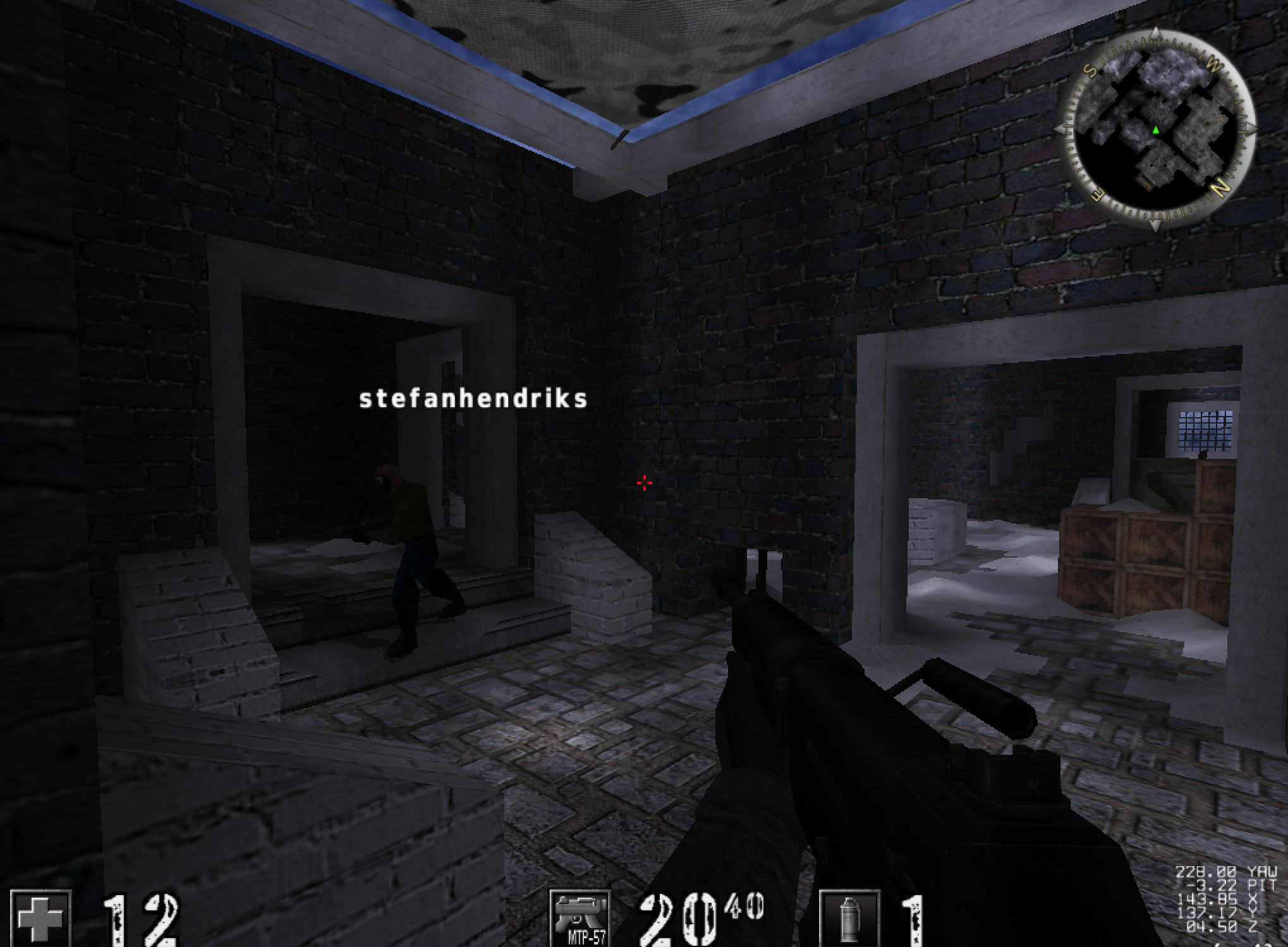
The matrix-based overlay earlier in this lesson is the more general technique. This target-specific section keeps the exact reverse-engineered internal print route so readers can reproduce the original game hack.
Build and inject the course D L L, enter a local AssaultCube bot match, and press F5. Press F5 again or End to drop LocalPatch and restore the exact original call:
Terminal window
Code example. The surrounding prose explains this example; the full lesson contains the exact code.
The entire working update loop, projection, internal x86 calling convention, cave, and installer are in assaultcube_tools.rs. The F5 worker logic is in dll.rs.
Silent video demonstration: Player labels following the AssaultCube view. The original ESP recording shows labels moving with the view. Follow one label while the camera turns: a stable label requires the player position, camera state, projection, and draw location to agree each frame.
Section: Debug the transform visually.
Test in this order:
one stationary point directly ahead;
move the camera left and right;
move closer and farther;
test a point behind the camera;
resize or change resolution;
move a point across the near and far clip planes;
add several entities.
If a point behind the camera appears mirrored, the w rejection is missing or wrong.
Section: Projecting a 3D box is not just two points.
To draw a 2D rectangle around a 3D bounds, transform all eight corners of an axis-aligned box and take the min/max of the surviving screen coordinates. Two opposite corners are insufficient after rotation. If the box crosses the near plane, some corners have unusable w; a rigorous result clips its edges against the near plane before taking bounds. Simply dropping those corners can make the box collapse or jump.
An oriented bounding box requires its local corners to pass through the object’s world transform first. A skeletal model may need pose-derived bounds because its rest-pose box no longer tightly encloses the animation.
Section: Gizmos: the same projection, used by developers.
Engine developers draw overlays with this same projection to see what the game cannot show on its own. A gizmo, or debug drawing, is a shape drawn for a single frame: a line, an arrow, a box around a collision shape, a circle for a light’s reach, the axes of an object, or a text label. The code calls something like line(a, b, colour) on every frame, the engine projects the two ends to pixels, and the line is drawn on top. When the code stops calling, the line is gone. Nothing was added to the game world.
The axes gizmo is the simplest. By convention red, green, and blue stand for the x, y, and z directions. For an object at (10, 5, 0), with each axis drawn 1 unit long, the engine projects four points and draws three lines from the first:
Code example. The surrounding prose explains this example; the full lesson contains the exact code.
A bounding-box gizmo projects the box’s eight corners, as above, and joins them with 12 edges. A text gizmo puts a label at one projected point, which is what the labels of the overlay in this lesson are. An editor’s transform gizmo adds interaction: the three arrows are picked with the mouse ray from Lesson 7.5, and dragging moves the selected object along the chosen axis.
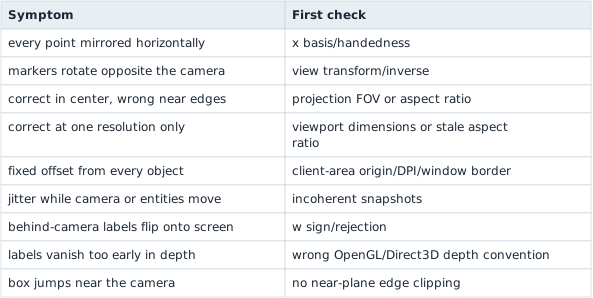
This is why a gizmo is a useful check on your own work. If the axes drawn at a player’s feet do not stay glued to the player when the camera turns, the projection, the snapshot, or the viewport is wrong, and the failure table below tells you which to suspect.
Section: Diagnose world-to-screen failures.
World-to-screen failures
Section: Scope.
Keep the observer in an offline match with bots. The transferable skill is the 3D-to-2D transformation pipeline used in editors, accessibility tools, debug HUDs, and visualization software.