Section: “Send a key” can mean three different things.
Our D L L, dynamic link library, now has a controlled lifecycle, and the scanner can do work off the game thread. A local tool also needs a deliberate way to start or stop a feature. Pressing a menu hotkey, sending a synthetic key to an offline game, and calling a window procedure solve different problems, even though all three sound like “input.” This lesson is about the ways Windows delivers input and the ways a tool can read or send it. Lesson 8.5 follows the input inside a game once it has arrived, from device events to per-frame state and actions.
Windows has several input paths because programs receive interaction in different ways:
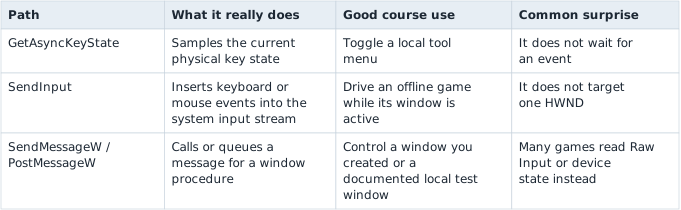
Each path lands on a different destination, which is the real reason to pick carefully:

There is no general Win32 function named SendKey. .NET’s SendKeys is a separate convenience layer, while the old keybd_event function has been superseded by SendInput. Naming the path correctly prevents a lot of confused debugging. ⌨️
Section: State, events, and messages are not interchangeable.
GetAsyncKeyState answers a state question: “is this key down at the instant I sample it?” SendInput submits input events to the desktop input pipeline. SendMessageW invokes a window-procedure message contract. Similar names do not put them on the same path.
In brief: Choose input APIs by what the receiver consumes: sampled state, desktop input events, and window messages describe different things.
A game may combine several paths: Raw Input for aiming, ordinary window messages for menus, and polled key state for a developer console. Observe how the target consumes input before choosing an A P I, application programming interface. Sending WM_KEYDOWN to a window that reads device state is not a failed keyboard event; it is the wrong abstraction.
Always pair a down transition with an up transition, including cancellation and error paths. A state machine should own which synthetic inputs are currently held so shutdown can release exactly those inputs.
Section: A window receives messages through a loop.
The message path makes more sense if we first follow an ordinary window. A key press or resize can place a message in the thread’s queue. A message loop retrieves it and DispatchMessage calls the window’s window procedure. That procedure is a callback: a function the application provides so Windows can call it when a message is dispatched. For example, it might respond to WM_SIZE by updating the window’s layout. Microsoft’s window-message walkthrough shows this path.
Code example. The surrounding prose explains this example; the full lesson contains the exact code.
GetMessage waits when no queued message is available. That suits a window that has nothing to do until the next event. A game often must update its world even when the player touches nothing. Its loop can use PeekMessage to check for waiting messages without blocking, then continue to update and draw. This is a conceptual comparison, not complete Win32 source:
Code example. The surrounding prose explains this example; the full lesson contains the exact code.
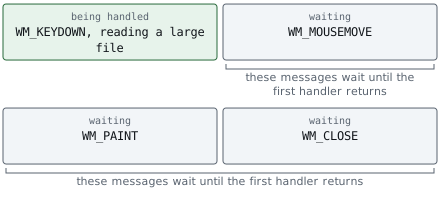
The waiting path and the continuously updating path look different:


TranslateMessage can post character messages derived from key messages. See Microsoft’s GetMessageW and PeekMessageW references for their return values and queue behavior.
The callback must also return promptly. While a window procedure is busy reading a large file or waiting on a network request, other messages for windows on that thread cannot be handled. The window may stop repainting or responding to input. Microsoft’s window-procedure guidance explains this bottleneck. The same concern appears when a hook adds work to a game’s time-sensitive path: move slow work elsewhere and make overload visible, as Lesson 6.11 does for a recorder.
Polling is the other side of this distinction. If no one sends your tool a message when the game’s gold changes, the tool can check the value on its own schedule. It does work even when nothing changed. Lesson 4.9 shows how to compare successive snapshots so many polls produce one meaningful event instead of many repeated actions.
Section: The window itself.
The window that receives those messages is also what the game draws into, and a few of its properties explain problems you will meet in later lessons.
Window rectangle and client area. The window rectangle includes the title bar and the borders. The client area is the part the game draws into. On one typical Windows setup, a window whose client area must be 1280 times 720 needs an outer rectangle of about 1280 + 16 equals 1296 wide and 720 + 39 equals 759 tall, because the borders and title bar take 16 pixels across and 39 down. The exact sizes depend on the theme and the scale, so the system works them out ( AdjustWindowRect ). A point in the client area becomes a screen point by adding where that area starts on the desktop ( ClientToScreen ), which is why Lesson 7.9 matches an overlay to the client area.
Resizing. Dragging the edge sends WM_SIZE with the new client width and height. A game then resizes its buffers and recomputes the projection ’s aspect ratio ( Lesson 7.1 ). With a client area of 1280 times 720 the aspect is 1280 divided by 720 equals 1.7778; a game that keeps the old value after the window becomes 1000 times 720 draws a squashed picture.
Scale factor. A display set to 125 percent reports a window 1,000 logical pixels wide as 1,000 times 1.25 equals 1,250 physical pixels. A game that is not aware of this has its picture stretched by the system, and one that is aware sizes its menus by the factor ( Lesson 8.7 ). Moving the window to a display with a different scale sends WM_DPICHANGED.
More than one window. An application can own several windows, such as the game’s window and a separate settings or tool window. Each has its own handle ( HWND ), client area, and scale factor, and windows made by one thread share that thread’s message queue. A screen point belongs to the window that contains it. Say the game’s client area starts at the screen point (100, 100) and is 1280 wide, and a tool window’s client area starts at (1400, 100). The screen point (1500, 200) is (1500 minus 100, 200 minus 100) equals (1400, 100) in the game’s client coordinates, which is past its 1280-pixel width, and (1500 minus 1400, 200 minus 100) equals (100, 100) in the tool window’s. Subtracting the wrong window’s origin is a common reason an overlay is off by a constant amount.
Fullscreen. Exclusive fullscreen takes over the display and may change its resolution. Borderless windowed is an ordinary window with no border, sized to the desktop, which is quick to switch away from and can be drawn over by other windows.
Presenting. The game draws into a hidden back buffer and then presents it. With vertical sync on, the present waits for the display’s next refresh, so a 60 Hz display caps the game at 60 frames a second ( Lesson 4.1 ). A game with little moving, such as a menu, may redraw only when something changes, to save power. A screenshot is a copy of the finished back buffer saved as an image file.
Focus and the cursor. A window that loses focus may pause its game, but GetAsyncKeyState still reports keys, so a tool must check focus itself (below). A game can hide the cursor, confine it to the window, replace it with its own image, or read relative mouse movement instead of a position ( Lesson 8.5 shows the arithmetic of a look-around loop).
Section: Read a hotkey with GetAsyncKeyState.
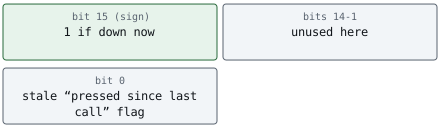
The current windows crate exposes GetAsyncKeyState as an unsafe function taking a virtual-key number and returning an i16. Windows puts “down right now” in the most significant bit. Because that is the sign bit of an i16, a negative result means down:
Code example. The code’s comments explain: 🛡️ SAFETY: every VIRTUAL_KEY value is a valid integer query. This call only samples desktop input state and does not retain any borrowed pointer.
Do not use result & 1 not equal to 0 as a reliable “pressed once” event. Microsoft keeps that low bit for old compatibility, but another process can observe it first. Build your own edge detector from the trustworthy high bit:
Alternative: An edge detector keeps two photographs of a button: the transition appears only when the newer photograph is down and the older one is up.
Code example. The surrounding prose explains this example; the full lesson contains the exact code.
Predict first
KeyEdge starts with was_down equals false, and the tool calls pressed_now once per poll.
The player holds Insert down across 5 polls in a row. How many times does pressed_now return true?
Answer: 1. Only the first down poll still has was_down equals false, so true && !false equals true there. The other four have was_down equals true, so the hold reports exactly one press.

Poll at a modest rate such as every 8–16 milliseconds. A tight loop wastes a C P U, central processing unit, core. A zero result can also mean the desktop is inactive or Windows integrity-level restrictions prevent the query; “zero” does not prove a keyboard is broken.
Sampling can miss a very short press between polls. That is a property of polling, not a reason to trust the ambiguous low bit. For a tool hotkey, choose a comfortable key and polling interval, then test focus changes, key repeat, and shutdown while held.
Section: Gate synthetic input to the intended window.
SendInput writes to the system input stream. It does not accept an HWND, so check that the target owns the foreground window before sending:
Narration: A desktop-wide synthetic key can reach whichever application has focus. Rechecking the intended foreground window prevents an unrelated app from receiving the request.
Code example. The code’s comments explain: 🛡️ These calls return copied identifiers; neither keeps our pointers.
Then send a balanced key-down/key-up pair:
Code example. The code’s comments explain: 🛡️ SAFETY: `events` is initialized and its element size matches INPUT.
A key event is an INPUT whose type says “keyboard” and whose union holds a KEYBDINPUT. The code above sets two of its fields and leaves the rest at zero: wVk, the same virtual-key number GetAsyncKeyState takes, and dwFlags, zero for a key going down and KEYEVENTF_KEYUP for its release. The input A P I reference lists every field and flag, including the scan-code form that some games read instead.
Always release a key or mouse button during shutdown, even if a feature fails. SendInput is subject to User Interface Privilege Isolation (UIPI): Windows blocks input from a lower-integrity process into a window owned by a higher-integrity one, such as a game running as administrator while your tool does not. Windows does not tell you why: neither SendInput’s return value nor GetLastError identifies UIPI as the cause, and the target window simply never reacts, which looks identical to a wrong virtual-key code or an unfocused window.

If synthetic input silently does nothing, check whether the target is elevated before suspecting your own code. Some games also intentionally use Raw Input or device APIs that do not behave like a normal text box. Do not respond by repeatedly flooding input.
Section: SendMessageW is not simulated keyboard input.
Every Win32 window has a window procedure that receives numbered messages. SendMessageW invokes that procedure synchronously and waits for it to finish. PostMessageW puts a message on the owning thread’s queue and returns. For a window outside your process, a bounded wait is usually safer than an unlimited one:
Code example. The code’s comments explain: 🛡️ This custom message belongs to our own lab window. It carries only integer values—never a pointer into this process.
Use PostMessageW when the receiver’s documented contract says queuing is correct and no immediate result is required. Never pass a local pointer in LPARAM to an unrelated process: Windows automatically marshals only certain system messages below WM_USER. A custom WM_APP message is appropriate when both sides share a pointer-free contract.
Most 3D games do not treat WM_KEYDOWN as authoritative gameplay input. They may poll device state, consume Raw Input, or ignore messages while unfocused. Sending a window message is therefore not a stronger version of SendInput; it is a different communication path.
Section: A controlled lab checklist.
Start only the course’s local/offline target.
Discover its window by P I D, process identifier, and confirm it is foreground.
Use Insert only to toggle your menu; detect the rising edge yourself.
Send one balanced input pair and count the events SendInput accepted.
Move focus to Notepad and verify the tool pauses instead of typing there.
Shut down while a feature is active and verify every held input is released.
Log errors and stop; never escalate privileges or flood retries automatically.
Section: Optional input A P I references.
The code above uses only the fields and calls already explained; these references list the remaining variants.
Additional detail: Optional reference: every KEYBDINPUT field and flag.
KEYBDINPUT: the fields that matter
wVkvirtual-key coderequired
Which key. This is the number from VK_INSERT and its relatives, the same ones GetAsyncKeyState takes.
dwFlagsflagsdefault 0
Zero means the key goes down. KEYEVENTF_KEYUP means it is released, which is why the code sends one of each. KEYEVENTF_SCANCODE switches the event to the hardware scan code in wScan instead.
Additional detail: The four flags and how they combine.
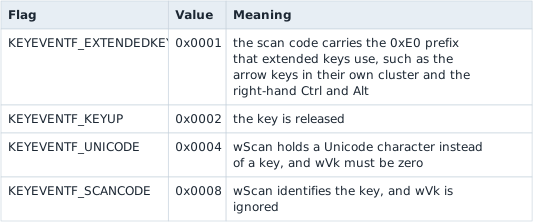
Flags are bits, so they combine with OR. Releasing a key by scan code sets two of them: hexadecimal 0 0 0 8 | hexadecimal 0 0 0 2 equals hexadecimal 0 0 0 A, which is 8 + 2 equals 10.
wScanscan codedefault 0
The key’s position on the keyboard, used only with KEYEVENTF_SCANCODE. Some games read scan codes, so a virtual-key event does not reach them.
timemillisecondsdefault 0
Zero lets Windows stamp the event itself.
dwExtraInfointegerdefault 0
An extra value the receiving window can read back. Almost nothing uses it.
Additional detail: Optional reference: other Windows APIs worth knowing.
Choose by question instead of memorizing a giant list:
Other input and window APIs
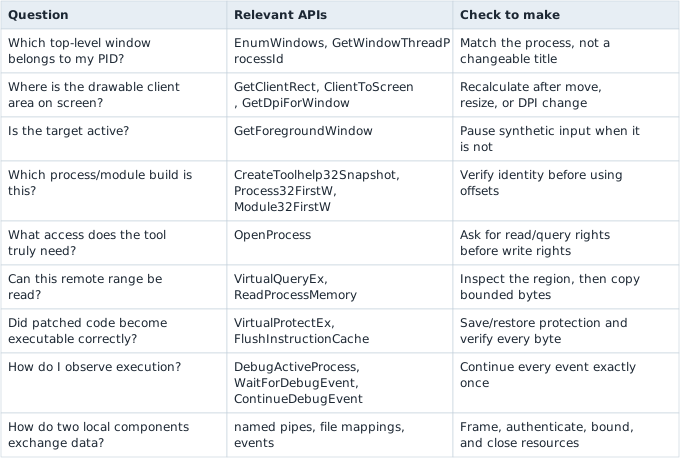
An HWND is also called a handle, but it is owned by the window manager and is not closed with CloseHandle. This is why “wrap every H... value in the same RAII type” is wrong. Learn the creation, borrowing, and destruction contract for each A P I family.
Section: References.
Microsoft: GetAsyncKeyState
Microsoft: SendInput
Microsoft: SendMessageW
Microsoft: ClientToScreen